
01
- 3D figurines
- Fashion portraits
- Interior concepts
- Pet characters
- Comics
- Brand visuals
What would you like to create?
Bring a portrait, a pet photo, a room sketch or an original logo. Start with a specific transformation, tell the model what to preserve, and shape a result for your own project.
Open the generatorWhat it does
Make something you have not made before
Three transformations worth starting with your own photo or sketch.
Turn your portrait into a collectible character.
Use an adult portrait as the identity reference. Describe the outfit, materials and display style for a full-body 3D figurine that feels personal.
Make my figurine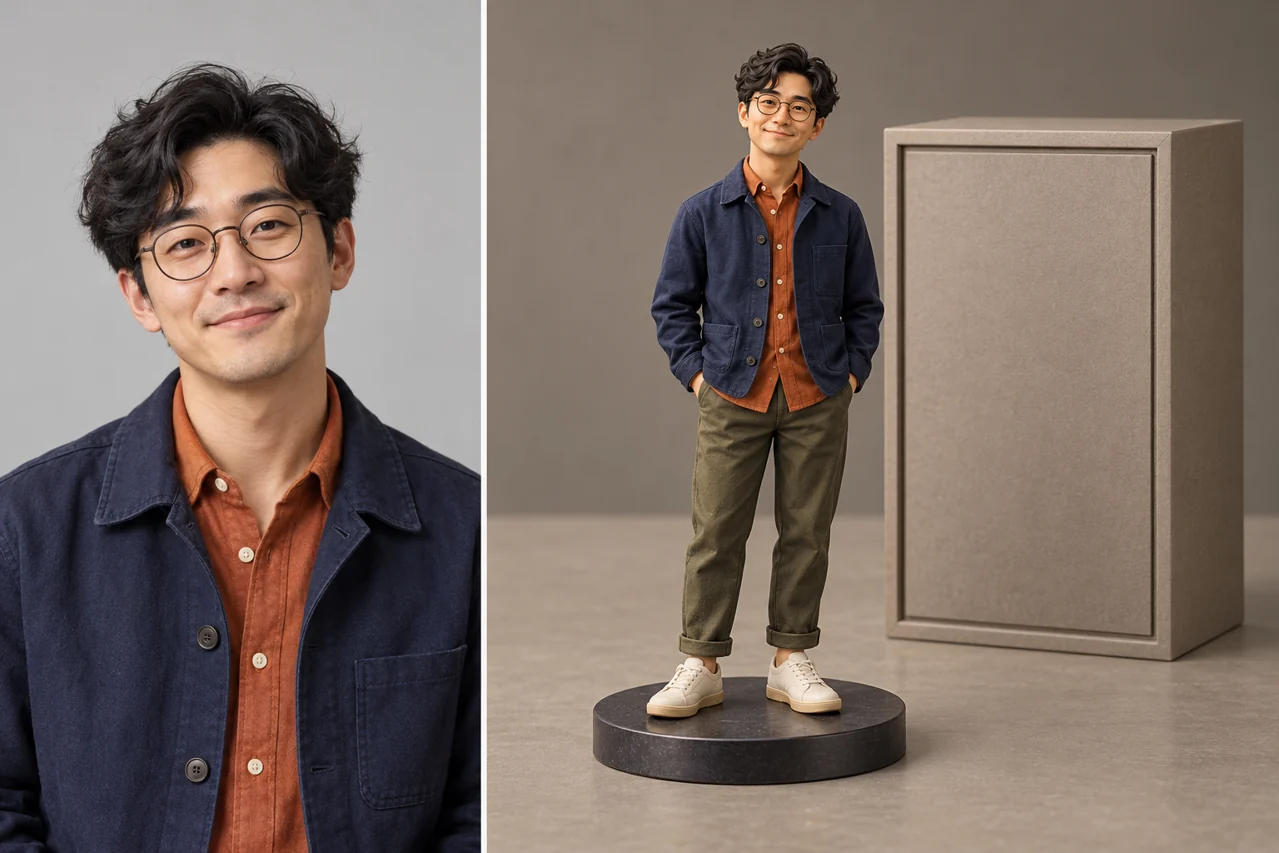
Give your portrait a leading-role look.
Explore an elegant adult fashion editorial. Define the gown, styling, expression and city-night lighting while naming the facial features you want to keep.
Create a fashion portrait
See the room inside your sketch.
Bring a perspective sketch and specify the materials, furniture and light. Keep the main arrangement while exploring a finished interior concept.
Render my room sketch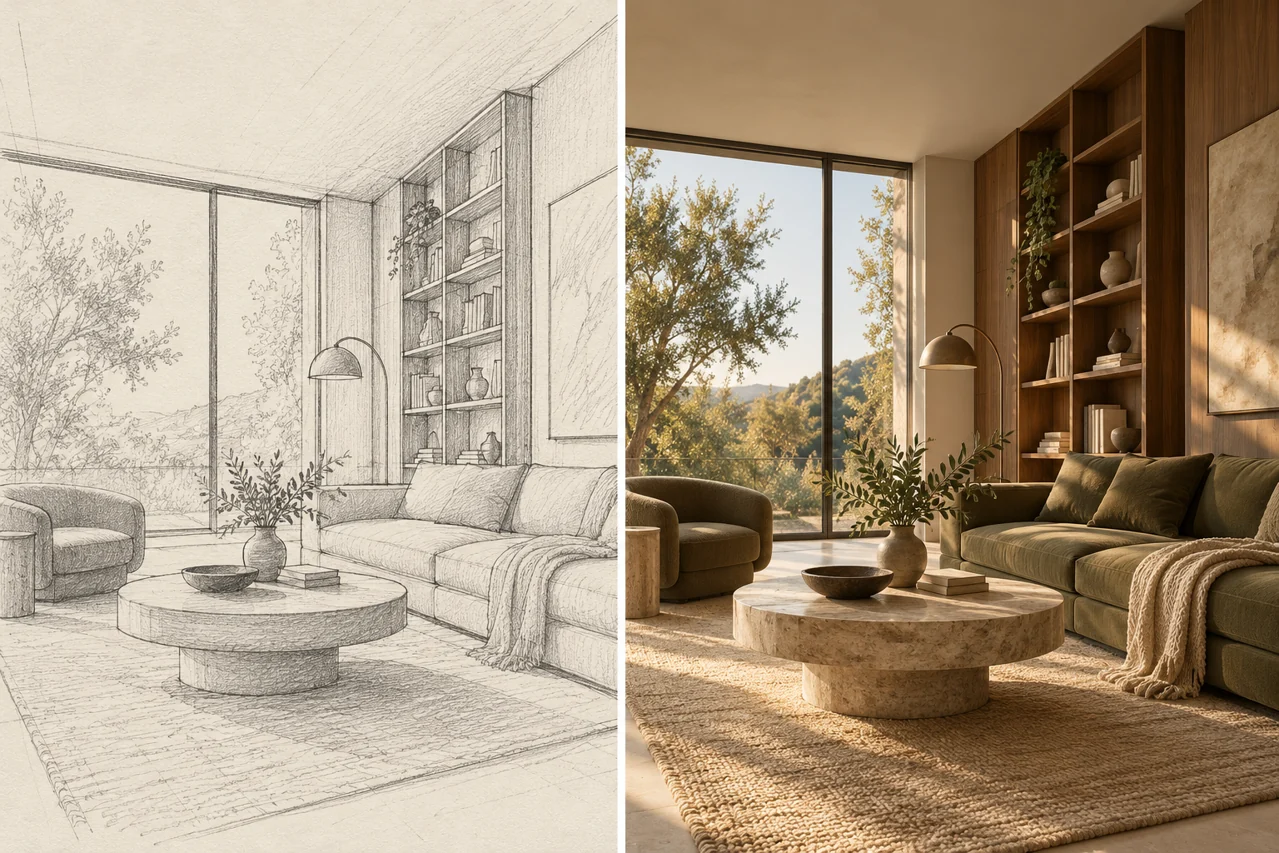
How to create with Seedream 5.5
Describe the idea, add references, choose your settings, and review the result.
- 01
Describe the image
Start with the subject, then add the setting, lighting and style. Put exact words in quotes and say where they belong.
- 02
Bring your references
Switch to Image to image and choose your photos. Name each reference in the prompt so the model knows what to preserve.
- 03
Choose your settings
Choose an available model and output shape. Review the live status and credit quote before submitting your request.
- 04
Review and download
Inspect the finished image beside your prompt. Check faces, product details and spelling, then download or continue editing.
Find your place in the Seedream family
Compare creative directions, then check the selected model’s supported settings and quote in the generator.
| Best for | Seedream 5.5 Seedream 5.5 Image creation and reference editing Read the model guide | Seedream 5.0 Pro Detailed design and complex layouts Read the model guide | Seedream 5.0 Lite Reasoning-led image creation Read the model guide | Seedream 4.5 Reference detail and typography Read the model guide |
|---|---|---|---|---|
| Best for | Explore portraits, materials and visual concepts with a clear brief. | Explore information-rich compositions and precise editing briefs. | Explore a scene through context, relationships and reference details. | Explore reference-based editing and poster composition. |
| Reference limit | 10 | 10 | 10 | 10 |
| Credits per image | 12 | 12 | 5 | 6 |
| Resolution | Provider default | Provider default | Provider default | Provider default |
Choose a Seedream model for your next creation
Start with the task: a reference portrait, a material study, an edit or a text-heavy layout. Compare supported settings and review the actual quote before submitting.
Explore the Seedream familyTry an unexpected creative direction
A pet becomes a character. A character becomes a story. A flat mark becomes a material.
Send your pet into space
Keep the markings and expression that make your pet recognizable, then describe a new costume and world.

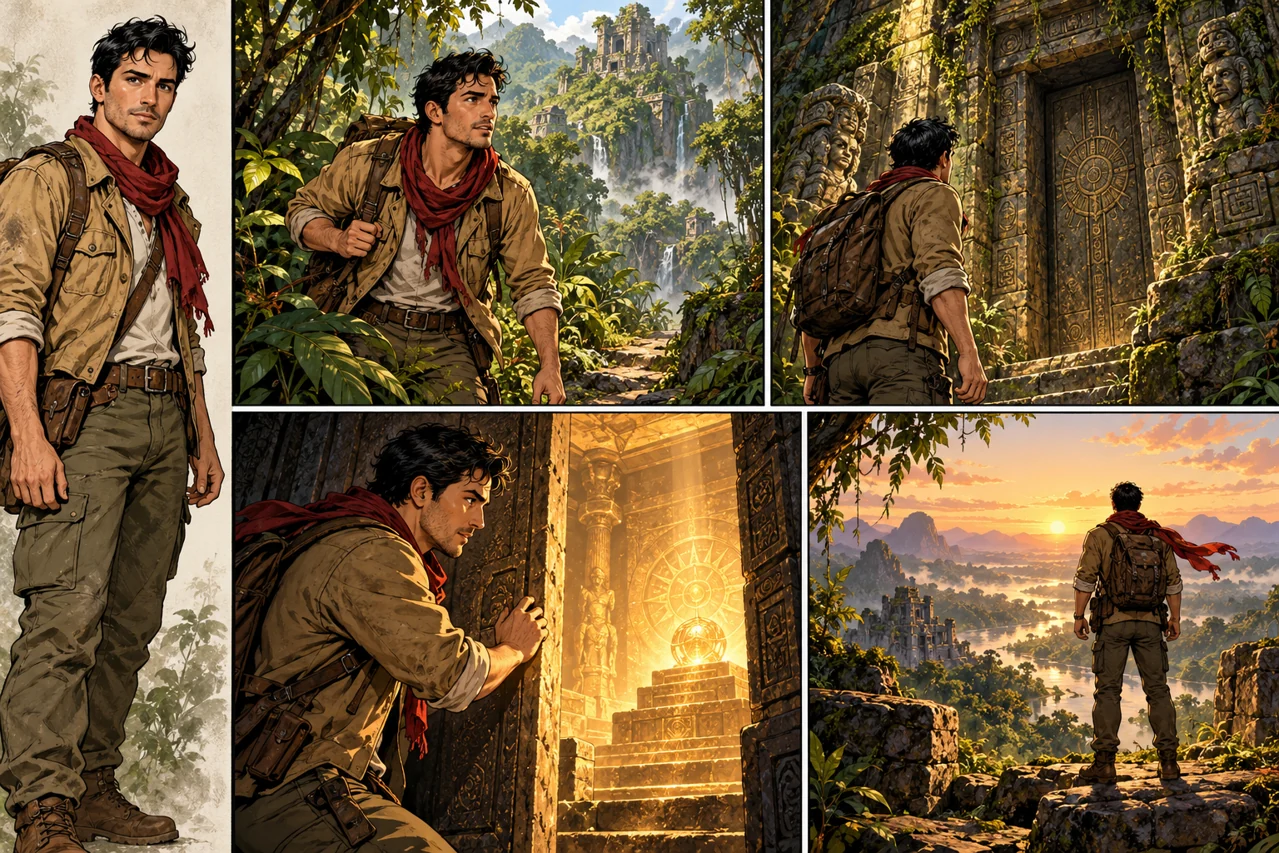
Creative directions Pet referenceCharacter directionGive one character a four-panel story
Choose a character reference and four connected moments. Name the face, outfit and details to carry through the sequence.
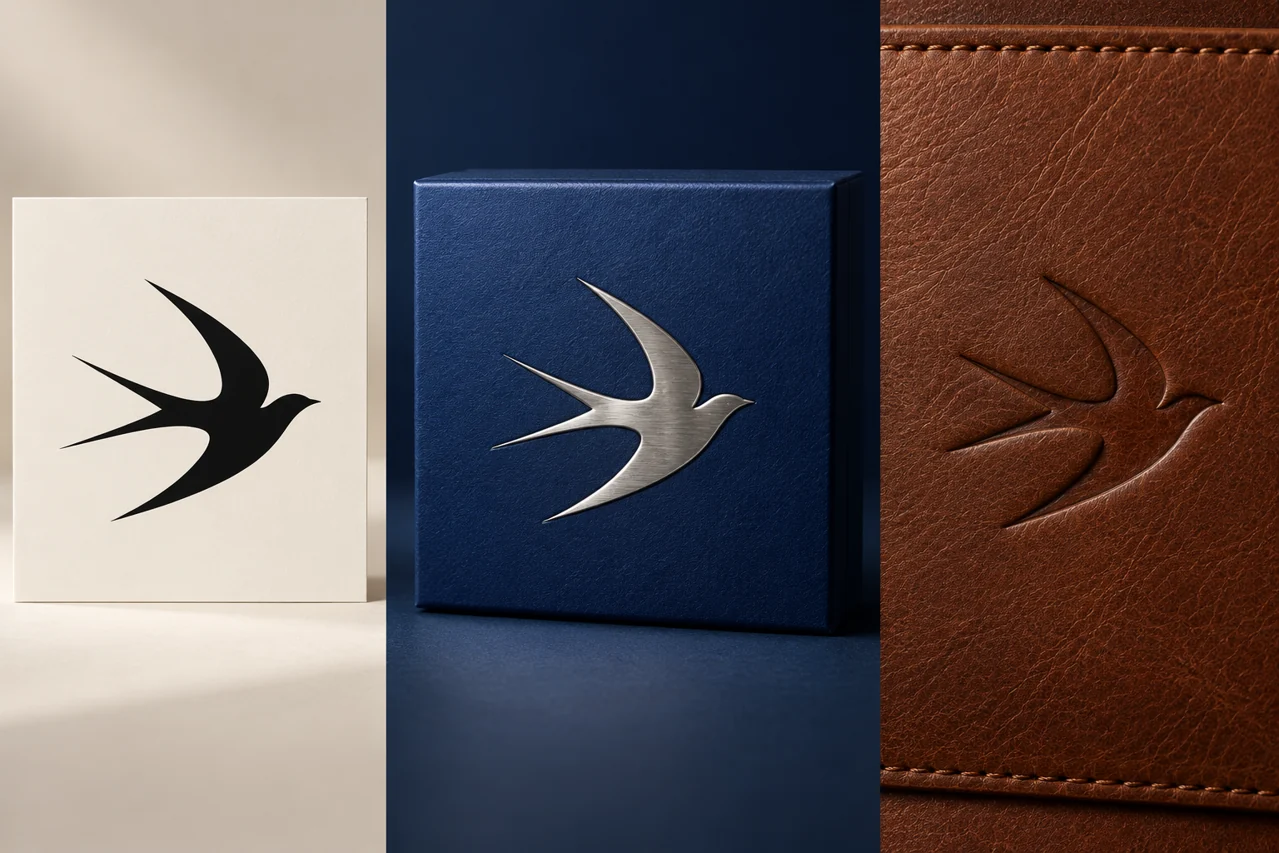
Creative directions See your logo in real materials
Explore embossed metal and debossed leather while preserving the geometry of your original mark.
Creative directions Design for more than one language
Prepare exact wording and a clear reading order for English and Chinese event posters. Inspect each version at its final size.

Creative directions
Find a use for your next image
A jewelry campaign, a tattoo idea, a novel cover or a new season for a favorite place.

Jewelry campaigns with a closer look
Plan gemstone reflections, metal texture and a setting that gives the product room to stand out.

Try a tattoo idea before placement
Use your original design and an adult placement reference to explore scale, alignment and the feel of the motif.
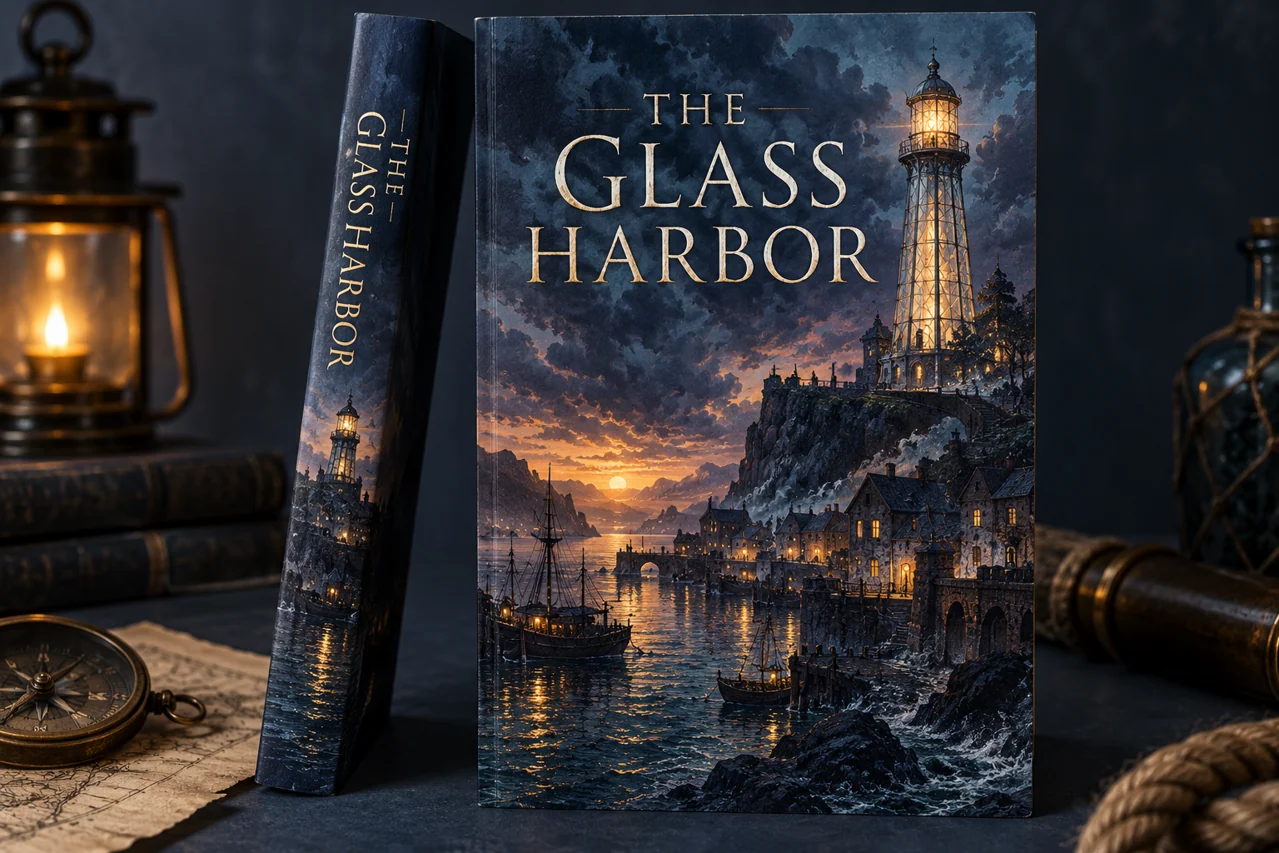
A cover that introduces your story
Describe the setting and mood, specify the book title and leave space for a clear reading hierarchy.
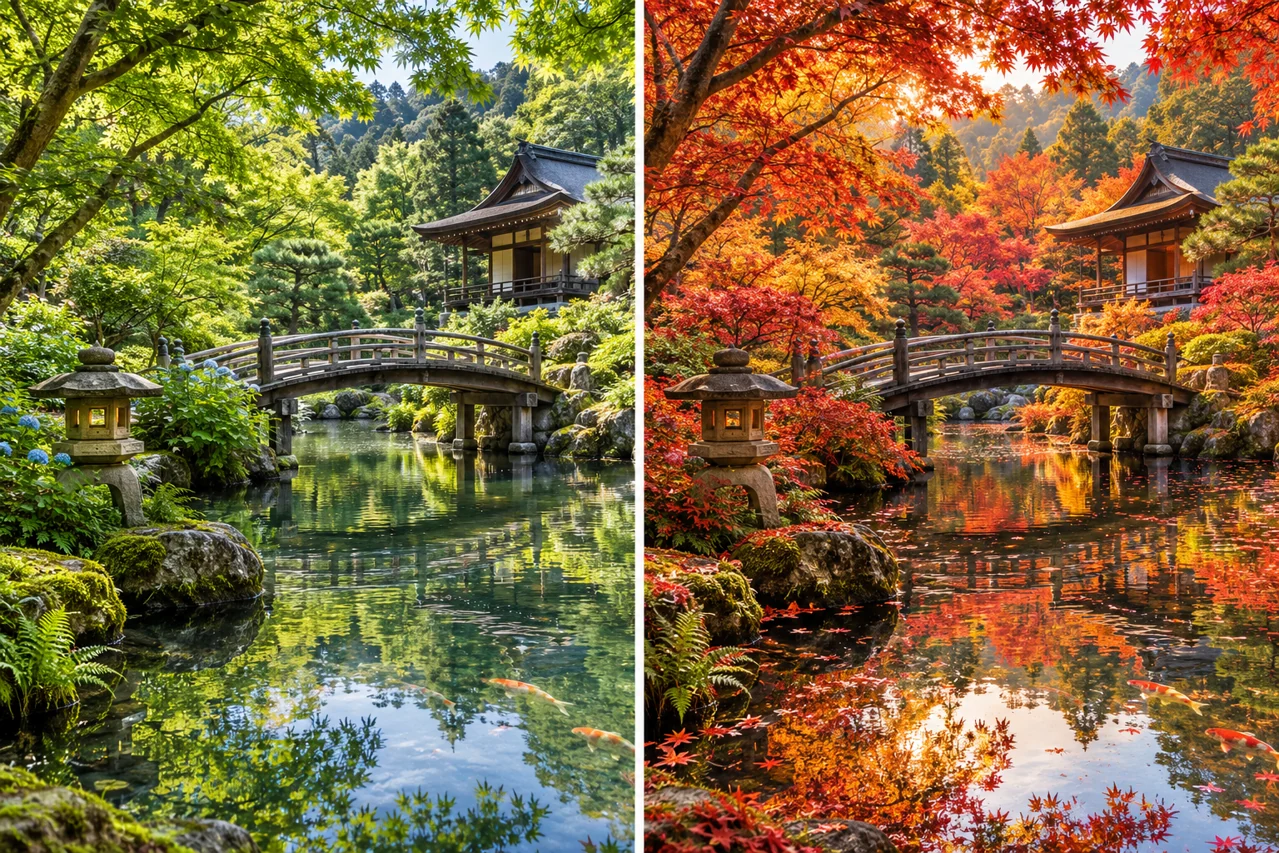
A new season for a favorite place
Keep the viewpoint and architecture of a travel photo while exploring autumn foliage and a different light.
Seedream workspace plans
Choose a monthly plan or one-time credit pack. Pay securely with Stripe and use your credits in the generator.
Credit packs · one-time
Card · Auto-renew
Yearly
Credits fund generation and editing tasks. Model, settings and output count determine the quote; a balance does not guarantee a fixed number of finished images. Review validity and renewal terms before checkout. Refund Policy · Manage or cancel renewal
A practical starting point for Seedream 5.5
A useful image starts with a clear brief. State the subject, composition, lighting and exact wording; for edits, separate what should change from what should remain. This is an independent Seedream 5.5 workspace. The selected model and live quote identify each submitted task.
ByteDance Seed: model directory · Seedream 5.0 Pro: official introduction · Seedream 5.0 Lite: official introduction · Seedream 4.5: official overview
FAQ
Seedream questions
How do I start creating with Seedream 5.5?
The Seedream 5.5 workspace is open for image generation and reference editing. Add a prompt and optional references, then review the credit quote before generating.
How are image requests charged?
Check the live credit quote for the selected model, operation and output settings.
Does Seedream 5.5 replace other models?
Other models keep their original names and settings. Use the model selector to check the supported settings and credit quote for your task.
How do I request text in an image?
Put the exact words in quotes, describe their position and use a clear reading order. Review spelling and alignment in the result.
Can I use reference photos?
Choose reference editing when the selected model supports it, upload authorized images and state what to change and preserve. Supported limits appear with the actual model.
What happens if a task fails?
Check the task status and error message. Provider failures follow the existing credit-reversal workflow. A completed image that needs creative changes is a separate case.
Ready when you are
Your next image starts with an idea
Explore prompts, prepare a reference and bring your next visual brief into the workspace.
Start creating